
Integrate MeowPush
Add MeowPush when your project or service needs to send push notifications to one or more users. For example, a monitoring service can let users choose MeowPush as their alert channel. The integration is straightforward enough that you can give this guide to an AI coding assistant to implement it.
MeowPush uses push keys as credentials for sending notifications. We recommend that projects and third-party services request application authorization to get a dedicated push key. Include your service's branded name and a description of what the notifications are for. This helps users recognize your service and start authorization in one click.
Notification settings best practices
If MeowPush is an optional notification channel, provide both a push key field and a Connect MeowPush button in your settings. Users can connect in one click or paste an existing key. The SDK below provides the button and handles the connection flow. After approval, fill in the key automatically and save it through your existing form submission.
You can also request authorization and retrieve the key from a local client or a server. The next two sections cover both approaches.
Request authorization from a local tool or server
Create an authorization request. Make the following request from your CLI, local program, or backend. In
metadata, include a service name and purpose that users will recognize.shcurl -fsS https://accounts.meowpush.com/api/v1/application-authorization-requests \ -H 'Content-Type: application/json' \ -d '{"mode":"create","metadata":{"name":"Build Monitor","description":"Send a notification when a build finishes"}}'Ask the user to approve. Show the returned
authorization_urlas a link or QR code.Retrieve and save the key. Use the returned
request_idandpoll_secretto poll the authorization status endpoint. After the user approves, you can retrieve the application push key and reauthorization credentials.
See the application authorization API for the full request flow and field definitions.
Connect in the browser with the SDK
Use the App Connect SDK to render the connection button on your page. When a user clicks it, the SDK opens the MeowPush authorization window. After approval, the SDK passes the push key to your callback. Use it to fill in your form or save the key directly.
Browser authorization demo
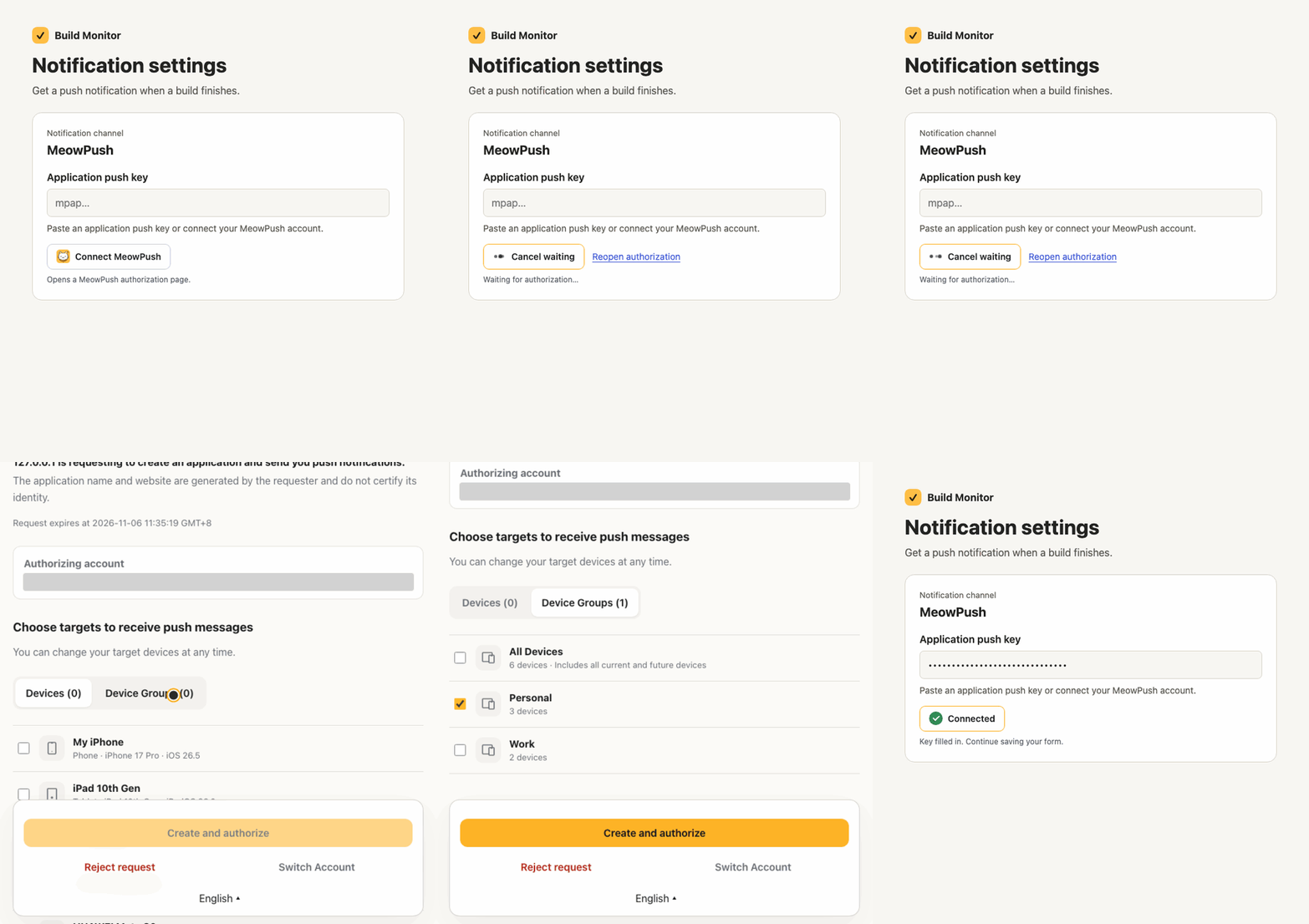
To integrate the SDK into a frontend project, install it and add a key field and a container for the button.
npm install @azurdream/meowpush-app-connect<label for="meowpush-key">Application push key</label>
<input id="meowpush-key" name="push_key" type="password" autocomplete="off">
<div id="connect-meowpush"></div>import { mountButton } from '@azurdream/meowpush-app-connect/ui';
import '@azurdream/meowpush-app-connect/styles.css';
const input = document.querySelector('#meowpush-key');
const connection = mountButton('#connect-meowpush', {
application: {
name: 'Build Monitor',
description: 'Send a notification when a build finishes',
websiteUrl: 'https://service.example',
iconUrl: 'https://service.example/icon.png',
},
onSuccess({ pushKey }) {
input.value = pushKey;
input.dispatchEvent(new Event('input', { bubbles: true }));
},
});
// Call connection.destroy() when removing the form or switching the account whose settings are shown.For a page that uses classic scripts, you can load the SDK directly from a CDN with a <script> tag.
For custom UI or interaction logic, use the SDK's connect function directly.
For more examples, see the SDK documentation.
Send a push
A push key lets you send notifications. Send JSON to https://send.meowpush.com/ from your backend or a local program. Use a single application push key per request.
curl -fsS https://send.meowpush.com/ \
  -H 'Content-Type: application/json' \
  -d '{"key":"<APPLICATION_PUSH_KEY>","title":"Build Monitor","body":"Build finished"}'
See the send notifications API for optional parameters and response details.