
Getting Started
Download the App and Register
Download the app from the MeowPush website. Once you sign up or sign in and allow notifications, your device is ready to receive push notifications.
Copy a Push Key
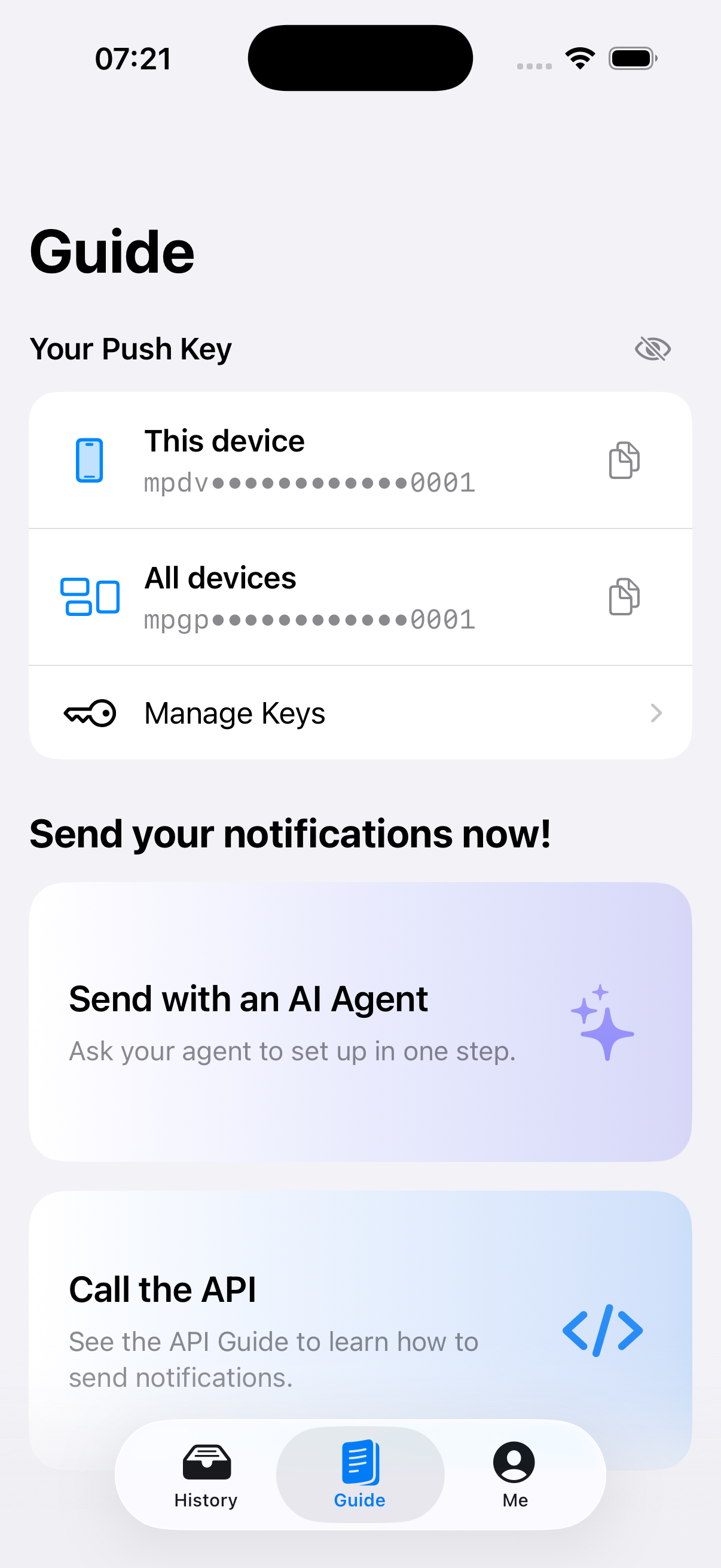
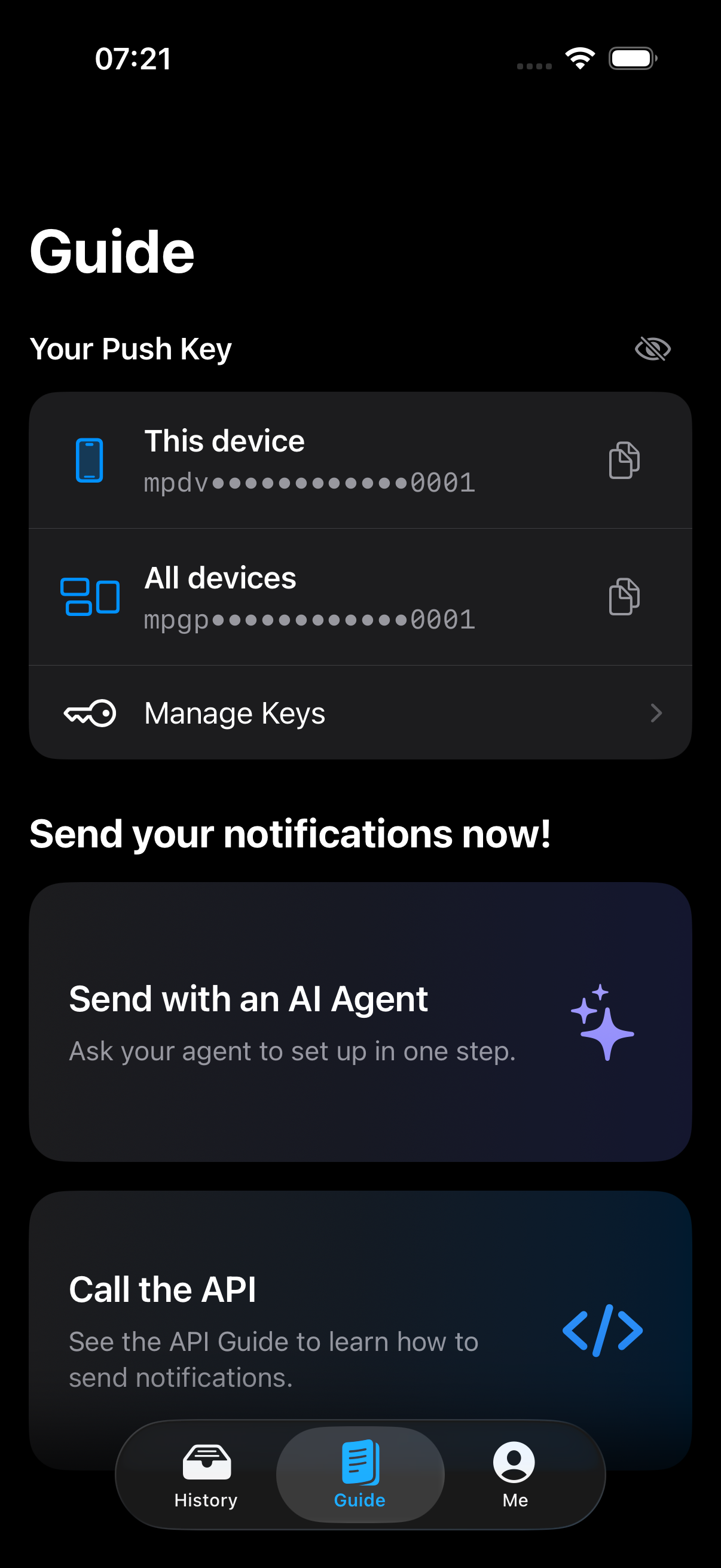
Open the Guide page in the app and copy the Push Key for the intended target:
- This Device: The Push Key for the current device. Messages are sent only to this device.
- All Devices: The Push Key for all devices. Messages are sent to every device under the account.
You can also create a device group from Manage Keys to obtain a Push Key for a custom set of devices.
When connecting an agent, a third-party service, or your own application, we recommend creating a separate Application for each sender, giving you more flexible management and stronger security.
Keep Your Push Key Safe
A Push Key is the only credential required to send notifications. Never commit a real key to a public repository or share a screenshot containing one online.
Send Push Notifications with an Agent
To use MeowPush in an AI agent workflow, or to have an agent help you send notifications, tell it:
Please refer to https://usepush.md and help me configure push notifications.The agent will create an application based on your needs and provide an authorization link or QR code. You can authorize it in the MeowPush app or on the web and choose the devices that should receive notifications. Once authorized, the agent will send you notifications as that application. See Applications for detailed integration steps.
Send Push Notifications with the API
To send notifications yourself or integrate them into your own service, use the API. It is a minimal MeowPush HTTP API that supports sending notifications to devices and device groups, as well as sending on behalf of an application.
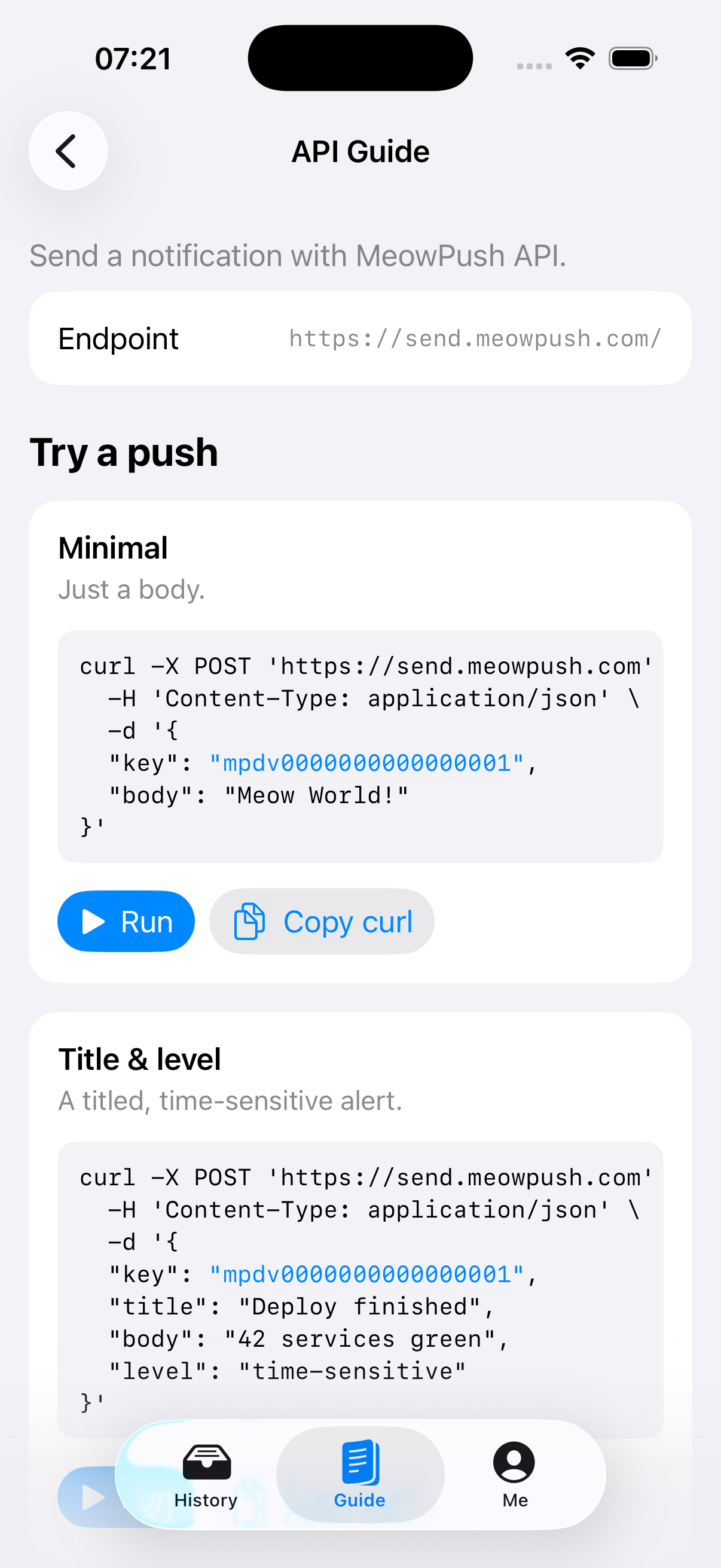
The following curl example sends a notification. Replace <Your Push Key> with the Push Key copied from the app:
curl -X POST 'https://send.meowpush.com/' \
  -H 'Content-Type: application/json' \
  -d '{
    "key": "<Your Push Key>",
    "body": "Meow World!"
  }'
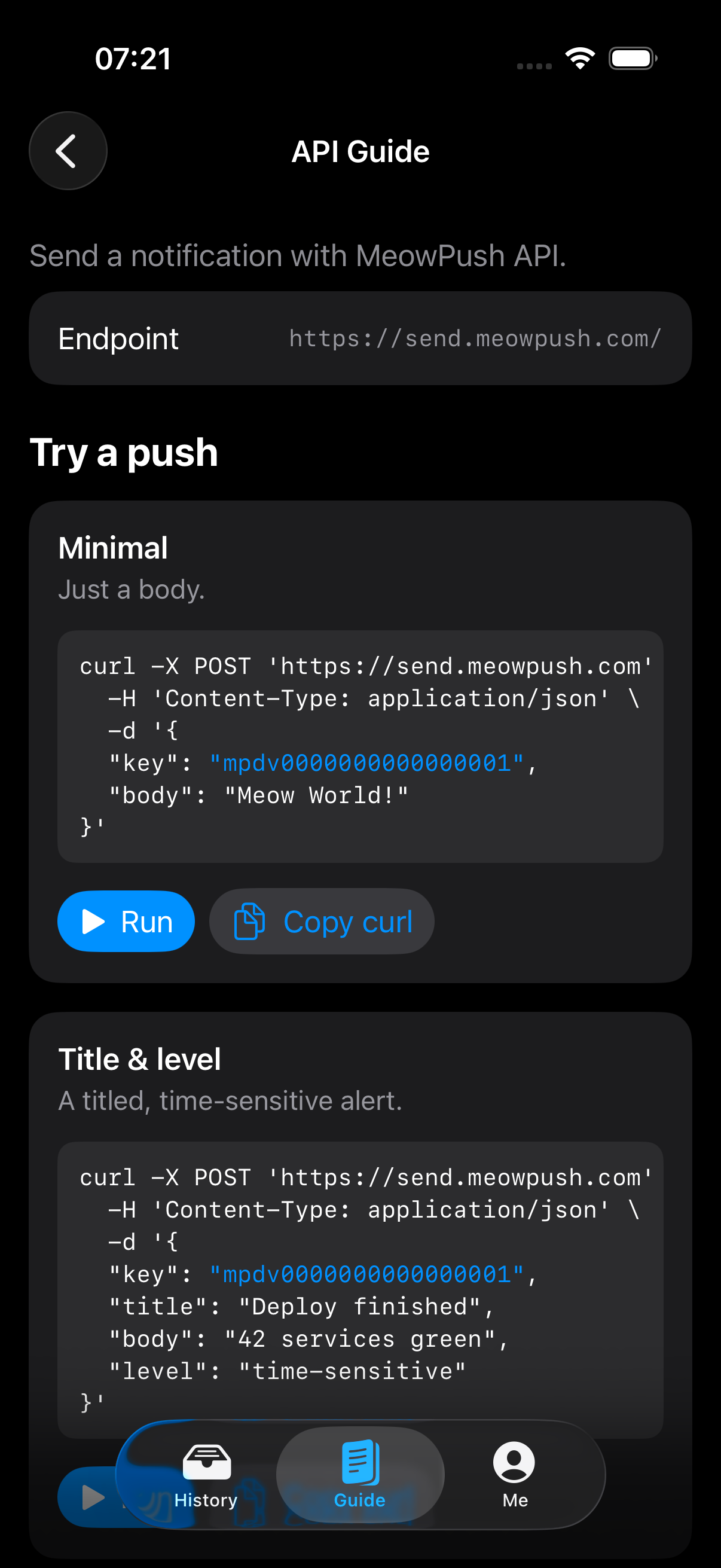
The Call the API page in the app also provides examples that you can copy and run.
When the API response contains status: "accepted", the upstream push service has accepted the request. Your device should receive the system notification shortly afterward.
For detailed information about the MeowPush API, see API.